
toast.ooo

welcome to toast.ooo!

general purpose Lemmy instance

Guidelines:

  • Be respectful. Everyone should feel welcome here.
  • No bigotry - including racism, sexism, ableism, homophobia, transphobia, or xenophobia.
  • No Ads / Spamming.
  • Content illegal within the United States will be removed

Find Communities

Donate (LiberaPay)


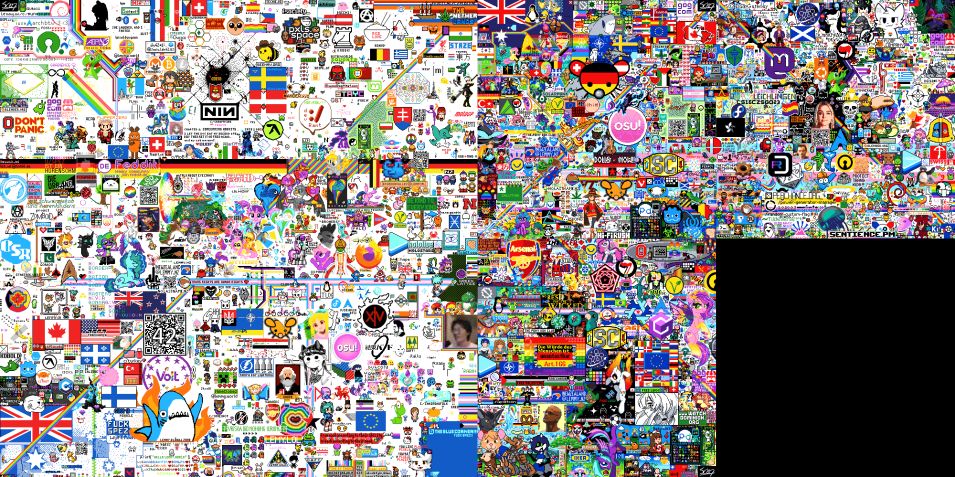
Canvas: !canvas@toast.ooo


Create postCreate communityCreate multi-communityModlog

Got the documentation itch in you? Now’s your time!

https://2026.canvas-atlas.fediverse.events/

The website should walk you through it, but a quick rundown:

  1. Click the Draw button in the top left
  2. Click points on the Canvas to select an area
  3. Click Next on the new sidebar
  4. Add details & click next (again)
  5. Follow the popup lol

Posters/prints

Check the 2026 thank you post for details on posters/prints (deadline is August 1st, 2026!)

Other Years

Related Communities

This is a fork of placeAtlas/place-2023, with some help from marius851000. Source is available on sc07.dev


Canvas Stats has been updated for 2026!

The site was rewritten to be more efficient and now has a ton more features such as:

  • better search
  • View stats for instances
  • More user stats including graphs for users

The biggest feature is Achievements. If you go to your profile on the site and click the “Claim the profile” button, it will unlock any achievements you have earned the 4 years that Canvas has taken place. More achievements will be added as they are suggested. It is guaranteed that everyone will get at least 1.

If you have any ideas for new features for the site, let me know. Currently working on

  • deeper search features such as listing the users who placed pixels at a coordinate or within an area.
  • more options for selecting what to render on the canvas

Edit: Thanks to everyone who has reported bug and issues with the site. I’ll get around to fixing them all tonight

CanvasStats.com


This event some creatures known as bleans visited to hang around the canvas! You can find them in various spots having fun if you look around.

This post is a gallery of all of the different ones that exist!

One Blean decided to take a little nap on top of the !newzealand@lemmy.nz logo

Another decided to cool off with some swimming over by Korone!

A couple went to go check out the programming.dev design. One fell asleep and seems to be getting eyed by a shark

These three Bleans are hanging out in the waterfalls going down the side of the duck! Ones doing some swimming while the other two cool off with water from the falls

Two Bleans had a nap together on top of Cyn while another is over on top of Trickshotterz guy

Five Bleans are hanging out over by the Toast logo! One pair decided to make a stack on top of it while another one found a good spot for a nap over in the corner

A few Bleans are hanging out in a huddle by the d2jam logo!

And a final Blean is resting in some shade over at the top of the water path below a tree

Bleans are a creature created by Rincs! You can find more of their stuff at https://rincs.art/ (the small ones are called cheets while the bigger ones are blorbs)


Canvas 2026 has concluded!

Thank you all for participating, it’s been a blast as always! 💜

Canvas 2026 ran from July 18th @ 4am UTC - July 20th @ 4am UTC

Feedback & Future Events

Hope you enjoyed the event as much as I and the moderators did! If you have any feedback, feature requests, or really anything, drop it in this thread (include any fun event ideas you have as well!)

Canvas Prints ✨

Bringing the Canvas prints back this year, but only for like 2 weeks. Once August 1st rolls around, the shop will close again. (You’ll also be able to buy any previous year’s prints)

https://sc07.shop/

International shipping is a pain, so this year the shop will only let you checkout with an address in the United States. But! if you are wanting to get a print, but are not in the US, fill out this form and I’ll see what I can do :)

Source

Just as always, Canvas is an open source project! If you want to take a peek at the code, report and issue directly to the tracker, or even contribute yourself, the source is available on sc07.dev

You can register either with your Fediverse account, or with an email and password. Unfortunately due to a lot of casino bots, registration is behind an approval queue. Send an email to hello@sc07.com if you’d like to ensure I see it

Timelapses

Not yet available, but they will be posted in the !canvas@toast.ooo Lemmy community, on the @canvas@fediverse.events Mastodon, and of course on sc07.tv PeerTube

Data

Not yet available, but it will be available soon (I will update this post when it is available)

Tools

Check out Monte’s CanvasStats.com to explore the world of data and numbers for all of the years (he’s also added achievements this year!)

Special Thanks

Thank you to all of the moderators that helped out this year!


As always, thank you so much for participating! Every contribution makes the Canvas what it is 💜💜💜 - grant (https://grants.cafe/@grant / @grant@toast.ooo)


Had an amazing time? https://tips.sc07.com/ (credit/debit) or Venmo @sc07_


Canvas 2026 starts tomorrow!

tomorrow! it’s tomorrow! in almost 24 hours we begin!

if you haven’t heard of this before– Canvas is a yearly event grant’s been running since 2023, and it’s a real-time collaborative pixel canvas that runs for 48 hours, just for the Fediverse!

How do I join?

On the website you’ll be able to login using fediverse-auth (it works similar to “sign in with google”)

if your app supports it, you can also login directly with it ✨

You can also test the login process directly on the site (click the emojis!)

Changelog (vs last week)

Contributions welcome! sc07.dev/sc07/canvas

  • [fbebffc] Allow color picking the void or empty space (Ategon)
  • [c5a17eb] Add a pixel available chime offset setting (Ategon)
  • [7bef4c8] Prevent the settings sidebar from resizing (Ategon)
  • [c04c9e1] Make admin and mod buttons compactable (Ategon)
  • [5ec44d6] Allow scrolling through keybindings (Ategon)
  • [e0fbffa] Show initial canvas coordinates properly (Ategon)
  • [8473cd5] chore: update all dependencies (Grant)
  • [f42798b] Fix extra color pick on primary when selecting with secondary (Ategon)
  • [7e4d906] docs: add AI policy (Grant)
  • [fe62158] Add Cursors of other Users & fix eslint checks (Ategon, Grant)
  • [01bf450] Add keybindings for zoom (Ategon)
  • [c60b152] Add a custom bottom mobile bar with a different color picker (Ategon)
  • [22ea4dc] Add panning using keyboard (Ategon)
  • [0d3e249] Makes the palette ignore dark reader converting (Ategon)
  • [4d6b217] Add the pixel count to the favicon (Ategon)
  • [9b7a7ea] ci: remove unused variables (Grant)
  • [a6be389] ci: move image build (Grant)

Socials


Been working on a larger change for awhile and its pretty much done now! In the previous events there was a script to have pings for where pixels were placed and then I adapted that so that it existed in the actual codebase so more people could use it (global pixel pings). Some of the feedback people gave from that was that it added a lot more activity to the canvas to make it seem more alive.

Cursors!

When thinking of other ways to make the canvas seem alive I got the idea to do something similar to cursors.io (which was shut down now but was a multiplayer team work game) or cursor camp (https://neal.fun/cursor-camp/) where you can see the cursors of other users on the canvas as they go around and place things.

This feature can be disabled (and then you dont send or receive cursor events) and is disabled on mobile as phones dont have cursors.

When you select a color your cursor is colored that color and you show up that way to any other users on the canvas. Cursors for people that are zoomed more out from you are a bit larger (and fade out when theyre overly big so they dont block things) and ones from people that are more zoomed in are smaller than you.

Reactions

As a little communication method between cursors you can send one of 10 different reactions using the number keys. These are various emotes I commissioned from Rincs (who is a great artist, highly recommend looking at their stuff https://vgen.co/Rincs)

Hope you enjoy! This is a feature that I don’t think exists in any canvas type website currently but I think is going to be great to make it feel a lot more alive


Todays day three of making and sharing new changes I’m making to the codebase. The change made today allows the ability to select a second color! For people who have used certain apps like aseprite you will recognise this functionality.

In the palette bar if you left click on a color you can then paint it using left click (which is how it was before). Now however if you right click on a color you can paint it using right click in addition to having something set on left click.

This means if you are working on an area that has two colors you can select one of the colors with your left click and the other with your right click and then paint it without needing to swap back and forth between the colors.

You can also hit the x button to swap the colors in your left and right clicks (changing the one in left click to be in right click and vice versa) which can be useful if you want to paint with left click mostly but still want to store another color for easy access


Canvas 2026 is in one week!

Hello Fediverse! I’ve come bearing some great news, Canvas 2026 starts in one week!

What?

If you haven’t heard, Canvas is a collaborative pixel event that runs yearly, exclusively for the Fediverse. You will have 48 hours to make your mark on an art piece, one pixel at a time. This year the pixel cooldown will be 30 seconds flat, but you can stack up 6 pixels at a time so you don’t have to wait ages for pixels.

How do I login?

When you login to Canvas it’ll prompt you to identify yourself using fediverse-auth, which involves sending a DM to your account to verify who you are (or logging in with your client of choice, if your app supports it)

Try it out on the Canvas homepage using the emojis

Changelog (compared to last week)

Contribute

  • UI got a whole refresh (Ategon)
    • interface visibility toggle
    • settings/info keybinds
    • primary & secondary color selections
    • color pick keybind
    • mobile ui improvements (no longer crammed)
    • palette symbols, numbers being more readable
    • palette collapsing to avoid being covered by sidebar (can be disabled)
    • palette can now show pixels of certain color remaining in template (can be enabled)
    • palette can now hide colors not used in template (can be enabled)
    • buttons now follow sidebar (can be disabled)
    • accessibility settings: disable camera flash, keybinds, hide overlay card, compress buttons (icon only)
    • google maps-style overlay selection
    • long left click for whois instead of exclusively middle click
    • + many misc changes
  • ✨ share urls (grant)
  • ✨ heatmap works again (grant)
  • new snapshot types (Ategon)
  • added cotemplate link to sidebar (grant)
  • fixed pixel stack weirdness (grant)
  • fixed coords being incorrect upon zooming (grant)
  • template source is no longer visible on toggle (grant)
  • added initial FAQ for common problems (grant)
  • and various minor changes

Socials


Continuing with posts on new features I’ve been adding in I just had another set of changes merged to be used in the event! (and they’re active right now on the site! You can go in and check them out as well as the snapshot changes I talked about in my last post)

This set includes many new UI features as well as an overall UI overhaul. Previously the site was pretty much just using base HeroUI components that were slapped together quickly to get something functioning. Now everything is styled together and should match to each other well.

UI Visual Improvements!

The main part of the change is the change to make the ui look better. I went through and made all the components have a consistent style (with a white or black background depending on theme and an outline thats a bit different than the base color)

Better Color Picking!

You can now hit a physical button in the palette bar to color pick or you can hit c to enter color picking mode. Middle click will still work and pick the color you click but entering color picking mode using the button or c enters a brand new mode there you can preview the color youre about to pick and have special UI.

You cant see my cursor in the screenshot but in this I have it over the dark blue and you can see theres a little color preview that shows up saying the name of the color and the hex code.

If I then click it copies it as the current active color and has a little color picked text.

Symbols in the Palette Bar!

Theres a new setting that lets you show symbols in the palette bar that match up to the symbols in the symbols template style. This can help you know what matches up to what easier or if you just think it looks cool.

It will automatically be enabled when you swap the template to symbols mode (and the numbers will automatically be shown when you swap to numbers mode)

Color Tooltips!

When you hover over a color in the palette bar it will now give you the name of the color in a little tooltip to make discussion about the different colors easier since everyone can have consistent names for each of them.

Collapsible stats card!

You can now collapse the bottom left card that shows coordinates, pixels, and users online. Collapsing sets it to a mode where it only shows the pixels available to place if you want to save on some screen space.

Overlays Card!

Instead of needing to go into the settings to swap between overlays being on or not, theres a new overlays card that lets you toggle them on or off easily. To toggle them you can expand the card and then click on one of the overlays to enable it.

Hold to check pixel data

Instead of needing to shift click to open up whois data you can now instead just hold down on the pixel which will fill up a meter for a second and then once its full a question mark will appear. If you let go the whois panel will appear where you can check information on that pixel.

Moving Buttons when you open a Sidebar!

When you open a sidebar now (for example settings or info) the buttons will now move to the side with it so that you can still use them while the sidebar is open

I made it extremely smooth of a transition so enjoy playing around with that : )

Sticky Sidebar Headers

When you scroll in a sidebar the sidebar title and the close button now stay always at the top so that they are easily accessible.

Compact Palette!

You can now set the palette to be in a compact mode where colors go over two lines instead of 1. It automatically swaps to this by default when you open a sidebar and then back to normal when you close it but you can also set it so it doesnt swap to it or so that its always active.

Small Screen Handling

Instead of the mobile UI being extremely scuffed theres now handling to move the UI around so its usable! On smaller pc type screens and on mobile some buttons move into a “more” button according to how big the screen is so that it never collides with the ui on the left side

Palette bar manipulation based on the template!

Added the ability to show how many of each color you need remaining for the template you have set. e.g. with the below image the template needs 26 more black pixels and various other colors to be complete)

Allows you to set it so that the palette bar only shows colors in the palette that exist in the template and still need to be placed as well so make it easier to know which color to choose to fill it in.

Icon and Favicon

Added the official canvas icon to the top left and made it the favicon of the site instead of the site not having one! (more favicon updates coming soon to show things like pixel counts in it :) )

Various Other Changes!

Removed the black overlay that appeared when a sidebar was open so its easier to have a sidebar open and place on the canvas at the same time.

Added little text when you place a pixel

Added icons in various spots and to various buttons such as in the bottom left card

Prevented settings and whois from being open simultaneously because they are both right sidebars (opening one closes the other)

Various new settings added to do things like disable keybindings, etc.

Hope you enjoy the new features! More coming soon as I work through them and theres some large ones I’m looking forward to


For a little pre-event discussion and to give some inspiration for peoples designs for this event, what was your favorite design that was made in previous iterations of the event?

Theres some atlases for the 2024 and 2025 editions of the event you can look at to see what people made

  • 2025 image

And then heres the 2023 timelapse


I’ve been working on some new features for canvas in the lead up to it starting so figured I would share some of the new stuff I’ve been working on and that will be available when the event starts.

If anyone wants to also help contribute changes the project is open source and I would love to help out with getting anyone else set up with the codebase to help grant and I clear out the tickets that are on the gitlab.

A change I made and that was just accepted is the ability to create snapshots of parts of the canvas! This is essentially just an easy way to create screenshots of areas to then share instead of needing to use other screenshot tools. Its useful as you can easily take screenshots of parts even if you aren’t looking at them (for example doing a full canvas screenshot) and you get full pixel precision instead of the scaling being weird.

Capture Canvas

This was a feature that existed in the previous iteration of the event but I noticed not many people knew about due to it just having a keybind (The P key). So I took the opportunity with adding the rest of the snapshot types to add a physical button thats easily findable for it as well.

This downloads a picture of the current canvas so that you can share it or use it for anything you might need the full canvas for (for example putting it into aseprite and then planning out a design for some new art over it.

Capture Template Area

This is similar to capture canvas but instead of capturing the entire canvas it captures only the area your template is within. It takes a picture of the smallest rectangle that contains the template plus 2 pixels of padding to make it look a bit nicer. This is useful if you want to share with the group that’s placing down the template how progress is going easily without needing to pan and scroll to get a good angle and then screenshot manually. Can be activated using shift+P or the ui button.

Capture View

Similar to the above two but captures the area you’re currently looking at (all visible canvas pixels on your screen). For when you want to show off a cool thing on the canvas you found. Can be activated using the L key or the ui button.

Capture Region

Lets you select a rectangle area and then takes a picture of that area. For similar use cases as capture view but if you want to share a more precise area rather than the entire area you can currently view. Can be activated using shift+L or the ui button.

Polaroids

Whenever you take a snapshot (using one of the four methods above) it shows a preview of what you just took as a little polaroid visual in the center of your screen before downloading it. I mostly just added this cause it looks nice but can be useful to know that you took a picture of the right thing without needing to open the file.

If anyone has any other feature suggestions feel free to let me know somehow and I can make an issue for it on the projects gitlab repo if there isn’t one already. I have some other cool stuff in progress that hopefully should be done before the event starts